
Back to DSPS
After being approved for DSPS accommodations, follow these steps to request your accommodations each semester through the AIM portal.
Login to your WCC Student Portal
You can also find this link in the future by visiting the Woodland Community College Website and navigating to the Student Portal link at the top of the page.
Login to your student portal
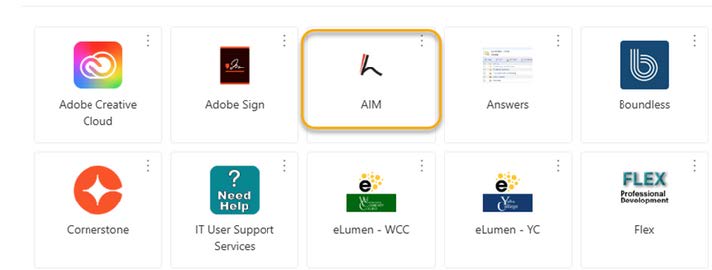
Select the AIM Application
Click the AIM application from the WCC Student Portal (MyApps).
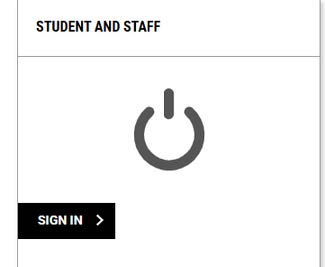
Sign in
Click the Student and Staff Sign In button, and use your Woodland Community College login.
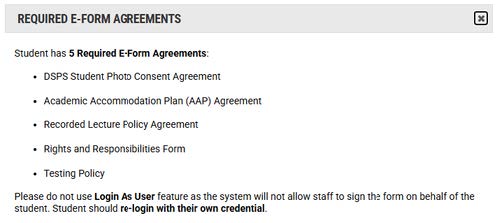
Sign Required Agreements
Before continuing, you’ll need to review and sign any required DSPS agreements when prompted.
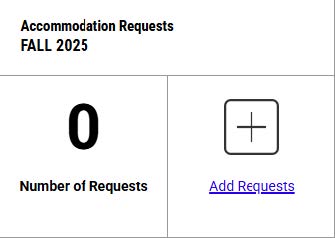
Add Request for Class
Start a new request by clicking Add Request for Class.
Select Your Courses
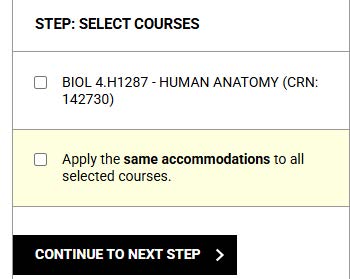
Select the course(s) where you would like to use your approved accommodations. Follow the on-screen instructions and click “Continue to Next Step.”
Select Your Accommodations
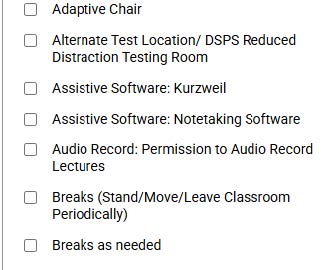
For each class, choose the accommodations you’d like to request.
Submit Your Request
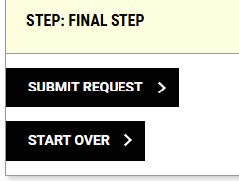
Review everything and click Submit to complete your request.
Need Help?
Come see us in the DSPS office or call (530) 661-5797 — we’re here to help!